Weebarr Wiki
Welcome to the Weebarr wiki.
Weebarr is a seasonal anime dashboard for people who run their own media setup. It helps you see what is airing, check what you already have or requested, and send new anime requests through either Seerr or Sonarr Direct without bouncing between a bunch of different tabs.
You do not need to understand every setting before using it. Start with the deployment guide for your system, complete the two-stage setup, choose your request backend after auth, then use the Seasonal page as your main dashboard.
Interface Preview
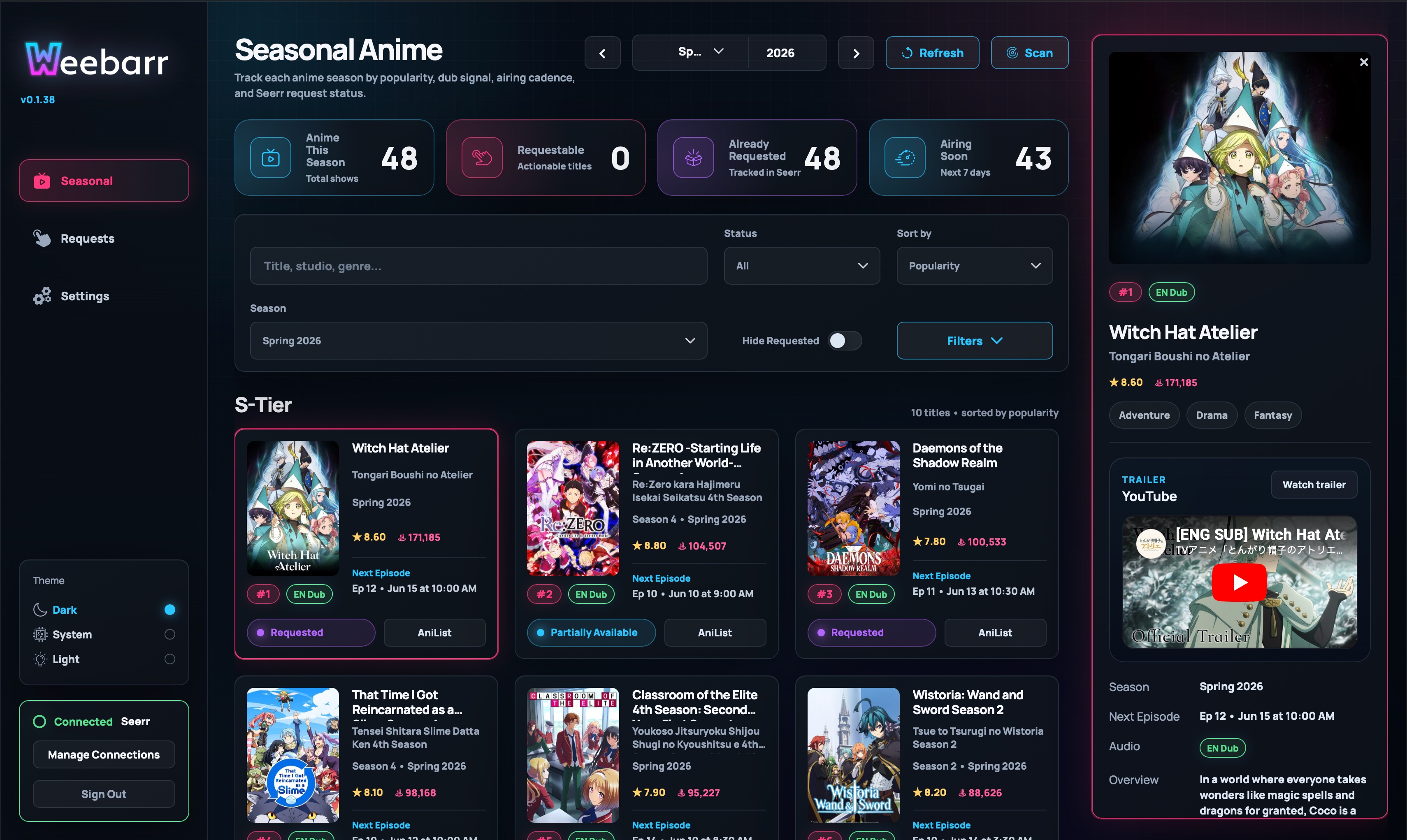
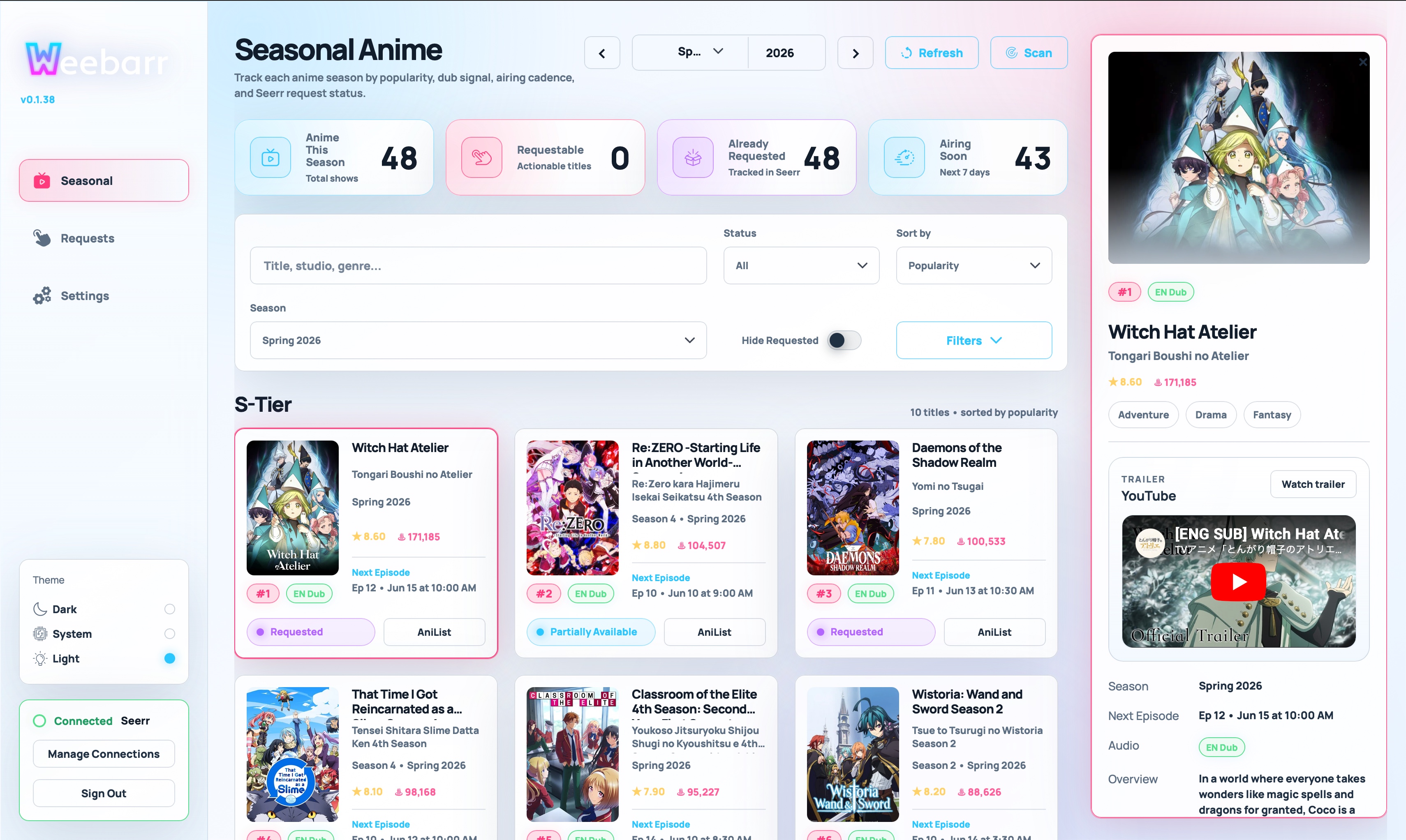
What Weebarr Does
Weebarr brings together:
- seasonal anime information from AniList
- request and availability status from the active request backend
- one-click Seerr requests or Sonarr Direct request modals
- a simple login system
- optional Plex auth login
- themes
- optional automation for requesting seasonal anime by bucket
- a responsive mobile layout with an installable app-style PWA shell
- native desktop launcher builds for Windows, macOS, and Linux that open the local web UI in your browser
In plain English: Weebarr helps you answer, “What anime is airing, do I already have it, and should I request it?”
Downloads and Links
Pages in This Wiki
-
Features Learn what each main page in Weebarr does.
-
Install as an App Add Weebarr to an iPhone, iPad, or Android home screen with the PWA shell.
-
Native Desktop Installers Install Weebarr natively on Windows, macOS, or Linux when you want a local launcher instead of a container.
-
Backends Decide whether Weebarr should talk to Seerr or Sonarr Direct, and see how setup works for each path.
-
Settings Understand the Settings page without needing to guess what each toggle means.
-
Theme Template
Use the reference theme manifest and sample JSON to build your own themes. -
Docker Desktop on Windows
Recommended if you are running Weebarr on a Windows machine with Docker Desktop. -
Docker Desktop on Linux
Recommended if you are running Docker Desktop on Linux. -
Docker Hub
Use the published Docker Hub image directly if that is your preferred registry. -
Other Deployment Options
For Docker Engine, Portainer, reverse proxies, Cloudflare Tunnel, custom images, and development use. -
Troubleshooting
Start here when something does not connect, request, import, or display correctly. -
API Reference
For users who want to connect health checks, automation, or external tools.
Recommended Setup Path
If this is your first time setting up Weebarr, use this order:
- Pick one deployment guide:
- Start Weebarr and complete the first-run access setup.
- Continue to the request-backend setup step after auth is configured.
- Choose
SeerrorSonarr Direct. - If you choose
Sonarr Direct, choosehttporhttps, enter the Sonarr host and port (default8989), then validate the API key so Weebarr can load the live folder and profile dropdowns before you save the backend settings. You can still useSkip Setupif you want to finish backend config later in Settings. - Use the test action if needed, then open the Seasonal page.
- Request titles manually, or enable automation later after you understand the buckets.
Main Ideas
Seasonal
The Seasonal page is the main screen. It shows current or selected seasonal anime and groups them into buckets such as S-Tier, Canon, Bingeable, and Filler.
Requests
The Requests page only shows requests made through Weebarr. It is not meant to replace your full Seerr request history or your full Sonarr library history.
Availability
Weebarr checks the active request backend and tries to show whether a title is already available, already requested or tracked, partly available, missing, or not matched.
Automation
Automation can request shows for you based on the buckets you choose. It intentionally skips titles that are already requested or already available.
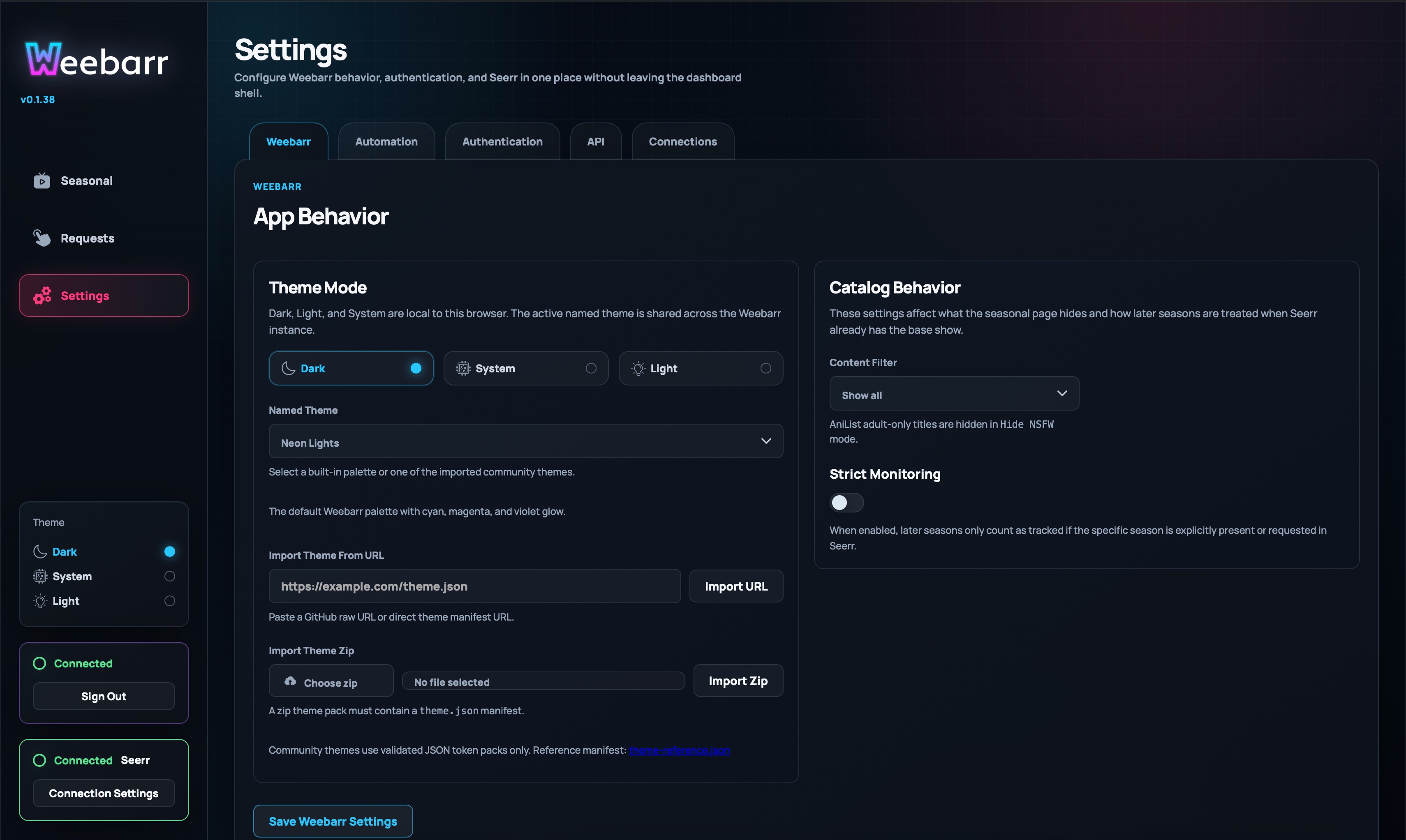
Settings
Settings control themes, content filtering, automation, login options, API-key access, and how Weebarr talks to the active request backend.
On phones, Settings uses a section dropdown instead of desktop tabs so each panel can use the full screen width.
Mobile and PWA
On mobile, the Seasonal page starts with the full Weebarr logo and version. The hamburger button opens a full-screen navigation drawer, and the smaller top-bar mark appears after you scroll past the main logo.
Supported browsers can install Weebarr to the home screen using the included PWA manifest and app icons. See Install as an App for the iOS and Android steps. If you want a real desktop install that launches the same web UI locally and keeps Weebarr running in the background, use Native Desktop Installers instead.
Before You Start
You should already have:
- Docker or Docker Desktop
- a working Seerr instance if you plan to use Seerr
- a working Sonarr instance if you plan to use Sonarr Direct
- an API key for the backend you plan to use first
- a folder where Weebarr can save its config
Your config folder matters. Keep it mounted and backed up. That is where Weebarr stores its settings, request history, theme imports, automation history, API key state, and login setup.