Settings Reference
The Settings page controls how Weebarr looks, logs in, scans for anime, exposes API access, and talks to the active request backend.
Most users only need to configure the Connections tab first. The other tabs can be adjusted later.
Settings Tabs
The Settings page has five tabs:
- Weebarr
- Automation
- Authentication
- API
- Connections
On mobile, these tabs are replaced by a single Settings Section dropdown. Choose the section you want, and the matching settings panel appears below it.
Weebarr Tab
The Weebarr tab controls general app behavior.
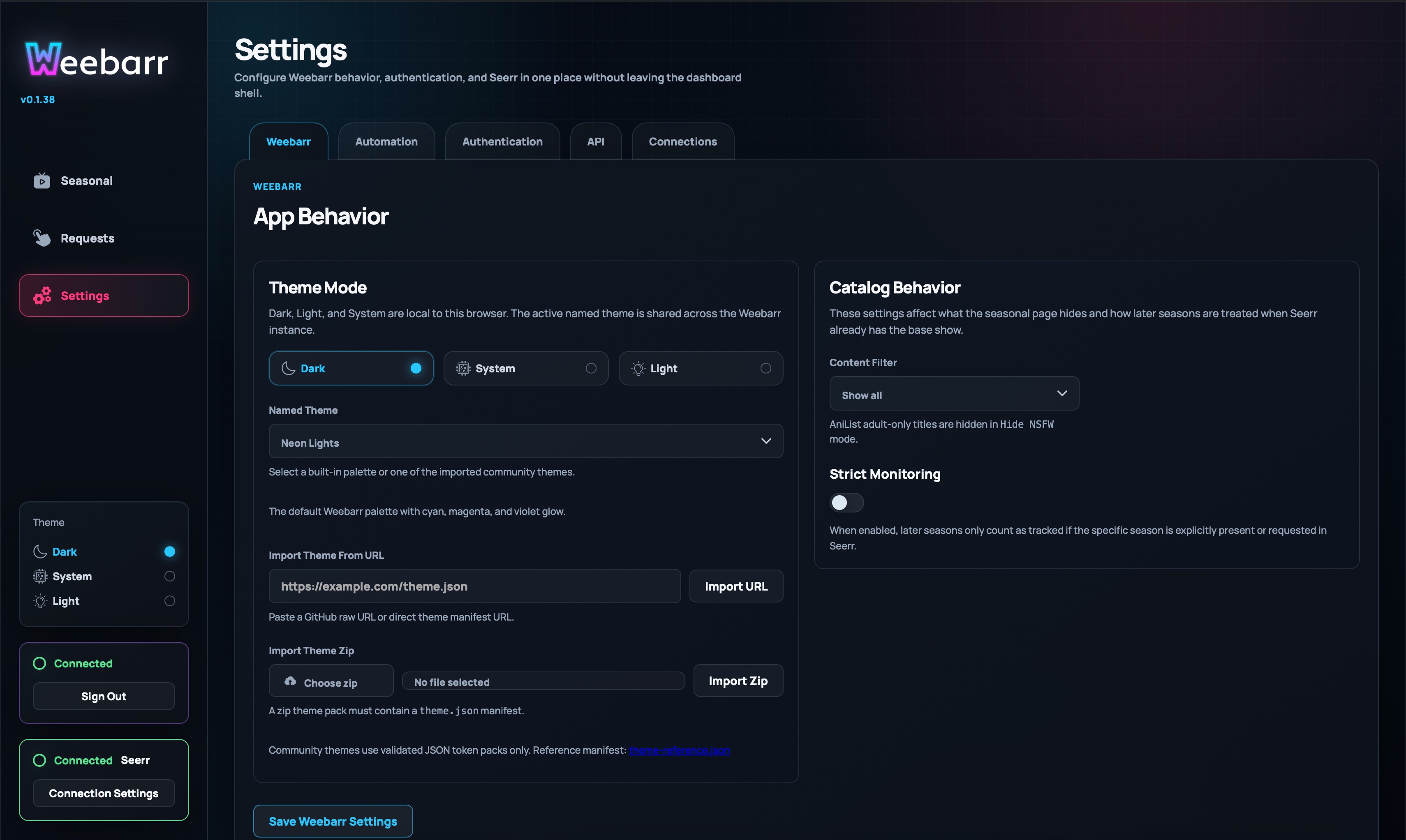
Theme Mode
Theme Mode controls light and dark behavior for your current browser.
Options:
DarkSystemLight
This is browser-local. Changing it on one device does not necessarily change it everywhere else.
Named Theme
Named Theme controls the theme used by the Weebarr instance.
Built-in themes include:
Neon LightsMonochromeColor Picker
Imported themes appear here after they are added successfully.
Theme Import
You can import a theme by using either:
- a direct URL to a
theme.jsonfile - a
.zipfile that contains a validtheme.json
Weebarr only accepts validated theme token manifests. It does not accept random CSS, JavaScript, or loose asset files.
Content Filter
The Content Filter controls whether AniList adult-only titles are hidden.
Options:
Hide NSFWShow all
For most shared or family-facing dashboards, Hide NSFW is the safer default.
Strict Monitoring
Strict Monitoring changes how Weebarr handles sequel seasons.
When Strict Monitoring is off, Weebarr may treat later seasons as partly covered if the base show already exists in Seerr.
When Strict Monitoring is on, later seasons need more explicit coverage. If a sequel season is not covered, Weebarr may show it as Season Missing.
Use Strict Monitoring if you want Weebarr to be more careful with sequels.
Automation Tab
The Automation tab controls auto-requesting.
Automation is optional. You can use Weebarr manually without enabling it.
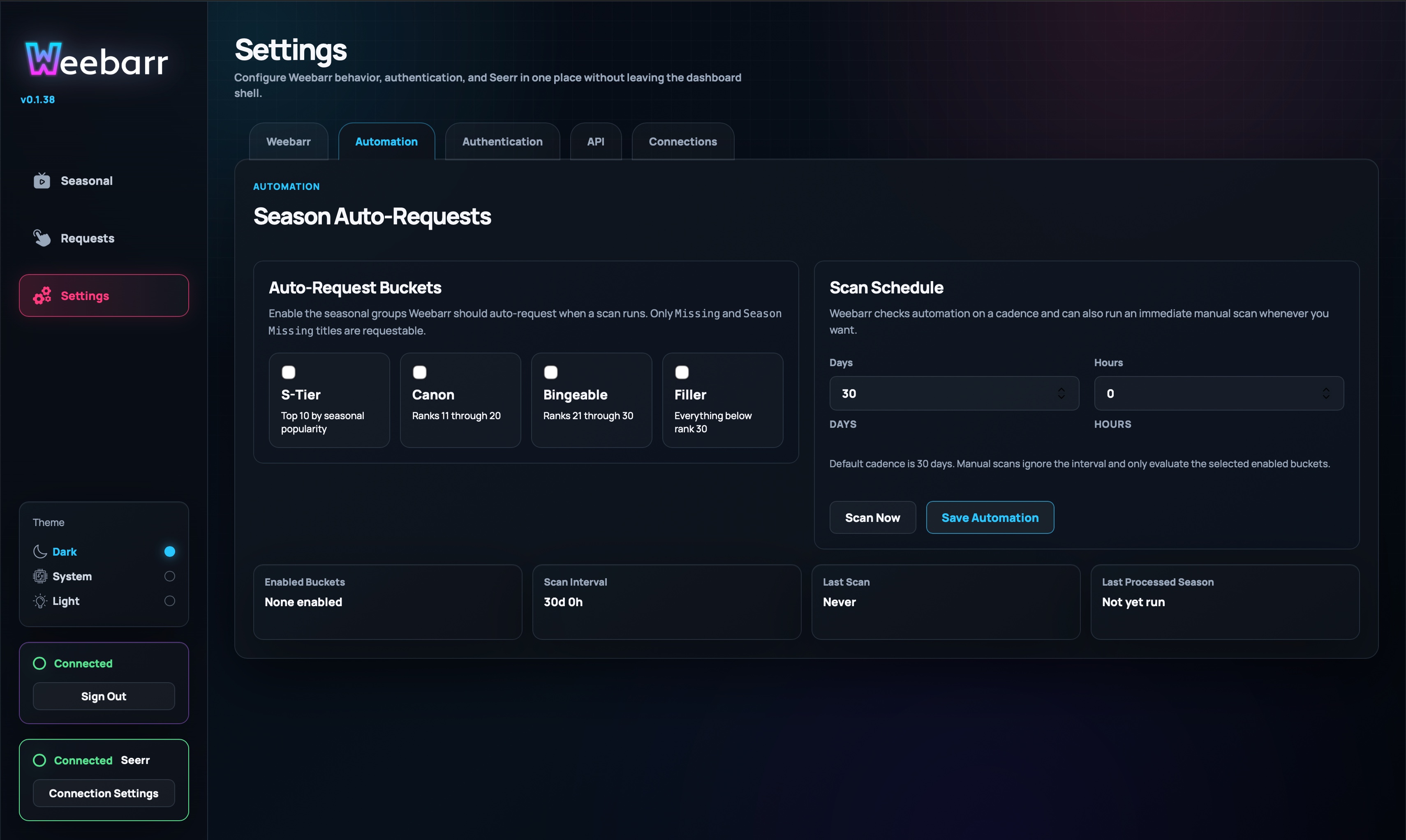
Enabled Buckets
You can choose which seasonal buckets automation is allowed to request from:
S-TierCanonBingeableFiller
Only enable buckets you are comfortable auto-requesting. If you do not want low-priority shows requested automatically, leave Filler off.
Scan Cadence
The cadence controls how often automation scans.
It is saved as:
DaysHours
Rules:
- days can be
0through365 - hours can be
0through23 0 days / 0 hoursis not valid
Example cadences:
1 day / 0 hoursmeans once a day0 days / 12 hoursmeans twice a day7 days / 0 hoursmeans once a week
Scan Actions
The Automation tab includes actions such as:
Save AutomationScan Now
Scan Now is useful when you want to test your settings without waiting for the next scheduled scan.
When enabling automation for the first time, Weebarr can optionally scan the current season immediately.
Automation Summary
The summary panel shows:
- last scan time
- last processed season
- last processed year
- current cadence
Use this panel to confirm automation is actually running.
Authentication Tab
The Authentication tab manages admin access.
Weebarr is built for a single-admin setup, not a large multi-user permission system.
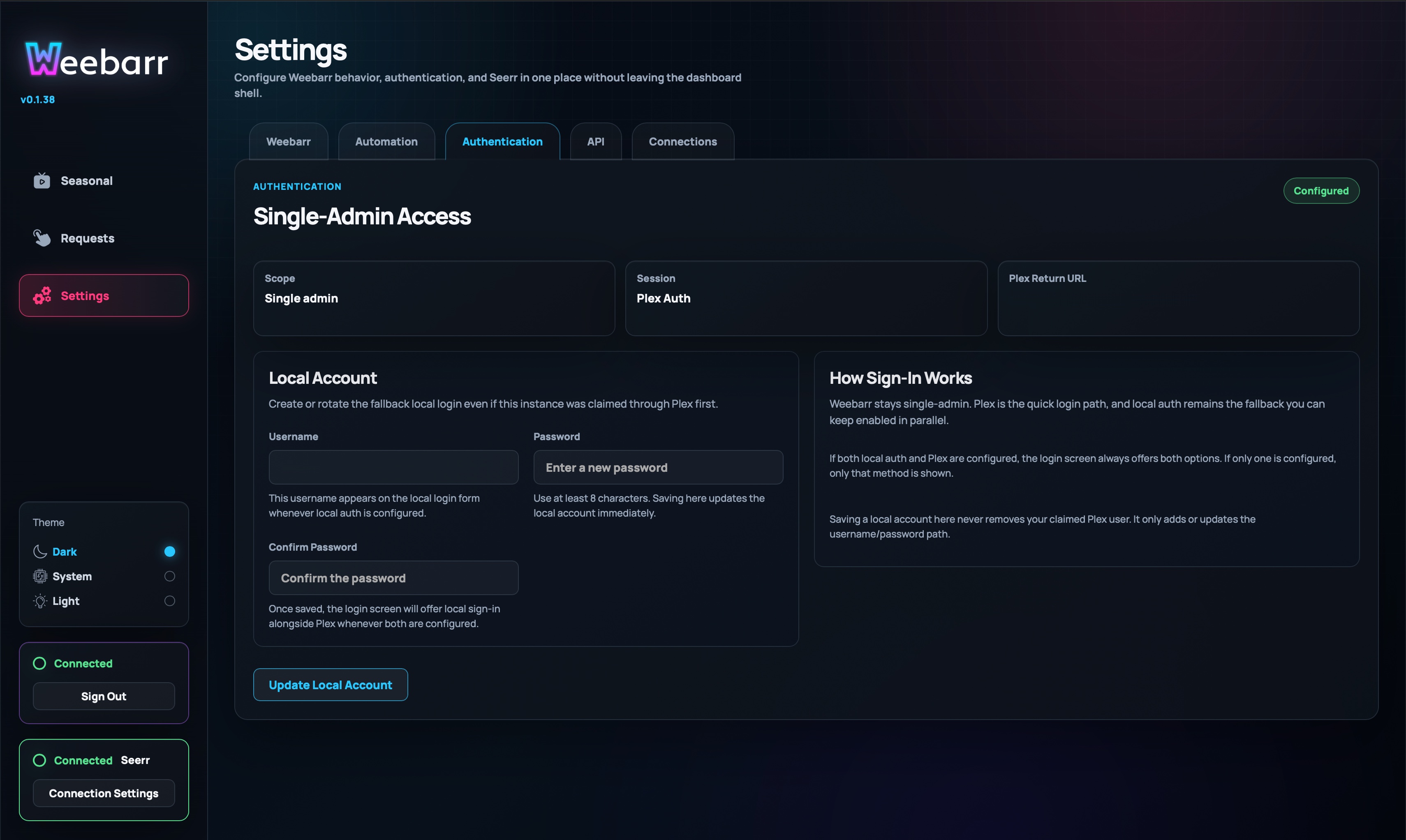
Local Account
A local account uses:
- username
- password
When creating or changing the password, both password fields must match. The password must also meet the minimum length required by the backend.
Plex Auth
Plex auth lets you sign in with Plex.
You can use Plex auth by itself or together with a local account.
When both local login and Plex login are configured, either sign-in method can be used.
API Tab
The API tab manages the automation API key.
This key is meant for limited external access such as:
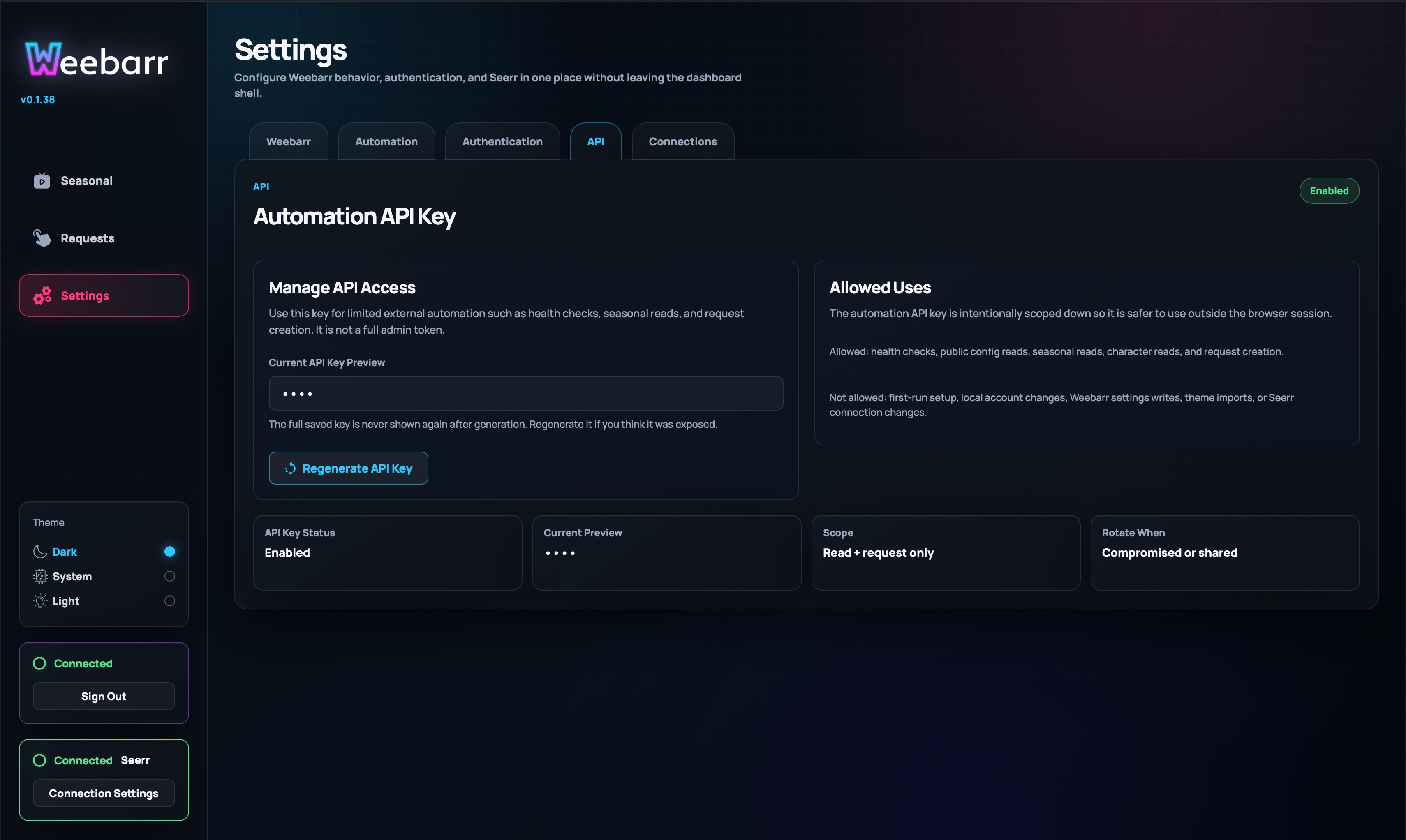
- health checks
- seasonal data reads
- character reads
- request creation
It is not a full admin token.
API Key Preview
Weebarr only shows a masked preview of the saved key after it is generated.
If a key already exists, you will not be able to read the old full value back out of the UI.
Generate or Regenerate
Use the generate or regenerate action if:
- you have never created an API key before
- you think the old key was exposed in logs, screenshots, scripts, or public repos
- you want to rotate the key as part of normal security hygiene
When you regenerate the key, the old one stops working.
The new full key is only shown once after regeneration, so save it somewhere secure.
Connections Tab
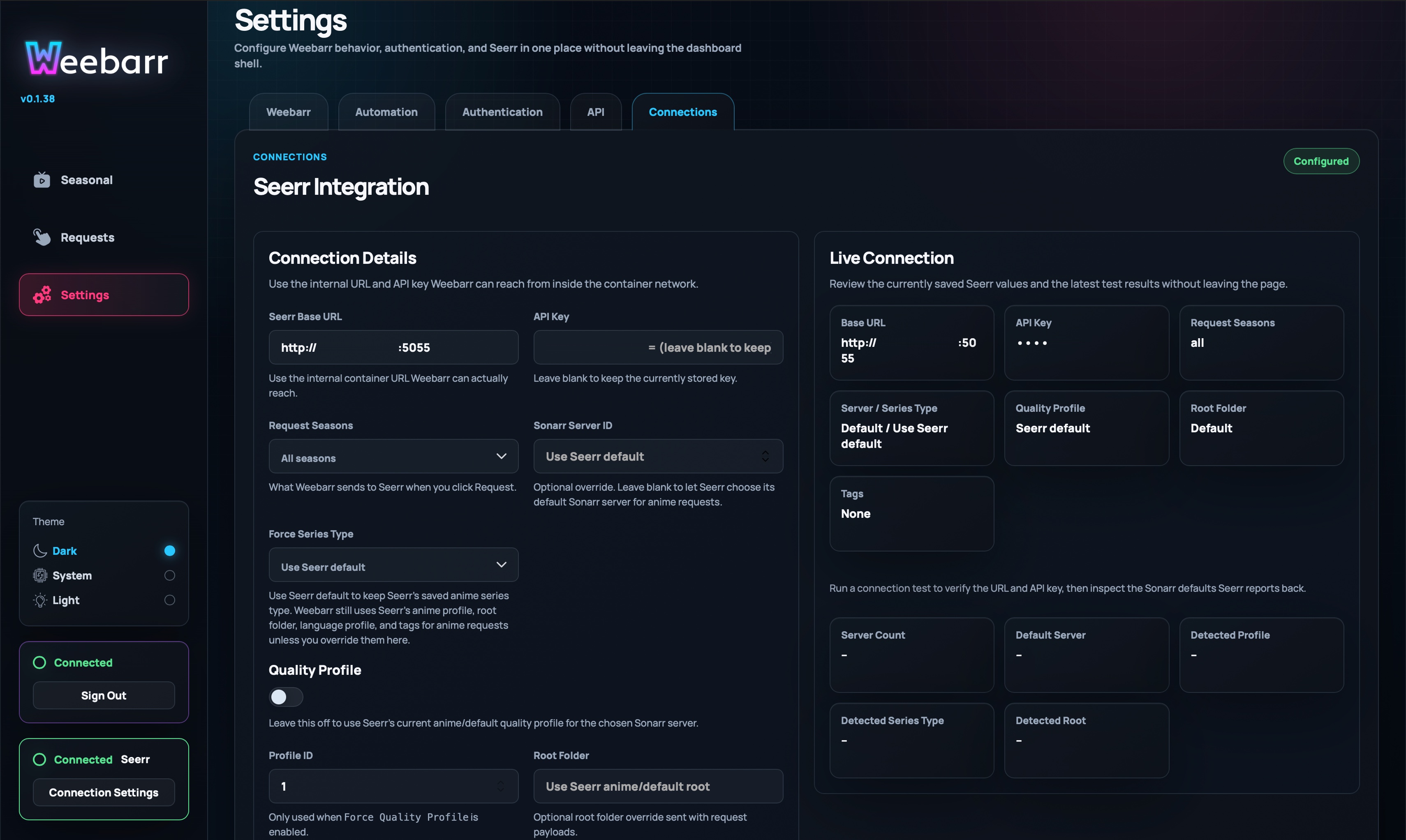
The Connections tab is where Weebarr chooses and configures the active request backend.
This is one of the most important tabs during first setup because the backend step now follows access setup directly.
Active Backend
The selector at the top chooses whether Weebarr should send requests through:
SeerrSonarr Direct
Switching backends does not erase the saved settings for the other backend. It only changes which backend Weebarr actively uses for new requests, automation, and frontend state labels.
Seerr Settings
Choose Seerr if you want the existing one-click request flow.
Required fields:
- Seerr Base URL
- API Key
The Seerr Base URL must be reachable from inside the Weebarr container. If Weebarr and Seerr are both in Docker, this may be a Docker service name such as:
http://seerr:5055
Optional Seerr overrides include:
- Request Seasons
- Sonarr Server ID
- Force Series Type
- Force Quality Profile
- Quality Profile ID
- Root Folder
- Language Profile ID
- Request User ID
- Tags
Use these only if your normal Seerr defaults are not giving you the result you want.
Sonarr Direct Settings
Choose Sonarr Direct if you want Weebarr to add or update anime directly in Sonarr.
The Sonarr connection block now collects:
- Scheme (
httporhttps) - Sonarr Host
- Port (defaults to
8989) - API Key
After validation, Weebarr unlocks the required direct-request defaults:
- Root Folder
- Quality Profile
- Series Type
Saved Sonarr Direct defaults also include:
- Default Monitor Mode
- Search On Add
- Season Folder
- optional Language Profile
- optional Tag IDs
In both first-run setup and Settings, Weebarr only shows the Sonarr advanced fields after you validate the Sonarr connection block.
That validation loads the live Sonarr options for:
- Root Folder
- Quality Profile
- optional Language Profile
If you change the Sonarr scheme, host, port, or API key, Weebarr hides those advanced fields again until you revalidate.
Backend Behavior Notes
Seerrkeeps the current one-click request CTA.Sonarr Directuses a request modal with season selection, monitor mode, search-on-add, and season-folder controls.- The Requests page stays a Weebarr-origin log either way.
- Automation routes through whichever backend is active.
Live Connection Summary
The live connection summary shows the effective settings Weebarr has saved.
Use it after saving changes to confirm Weebarr is using the values you expect.
Where Settings Are Saved
Most Weebarr settings are saved in the mounted /config volume as JSON.
This includes:
- named theme
- strict monitoring
- automation cadence
- request backend settings
- auth mode
- API key state
- request history
- imported themes
Theme Mode is different. It is browser-local, so it follows the browser or device you are using.
Back up your config folder before upgrading or moving Weebarr.