Feature Reference
This page explains what Weebarr does from a normal user point of view. It is not meant to be a developer map of every internal part. Think of it as the app tour.
Seasonal Page
The Seasonal page is the main dashboard.
This is where you browse anime by season, see what is already available, and request anything you want the active backend to handle.
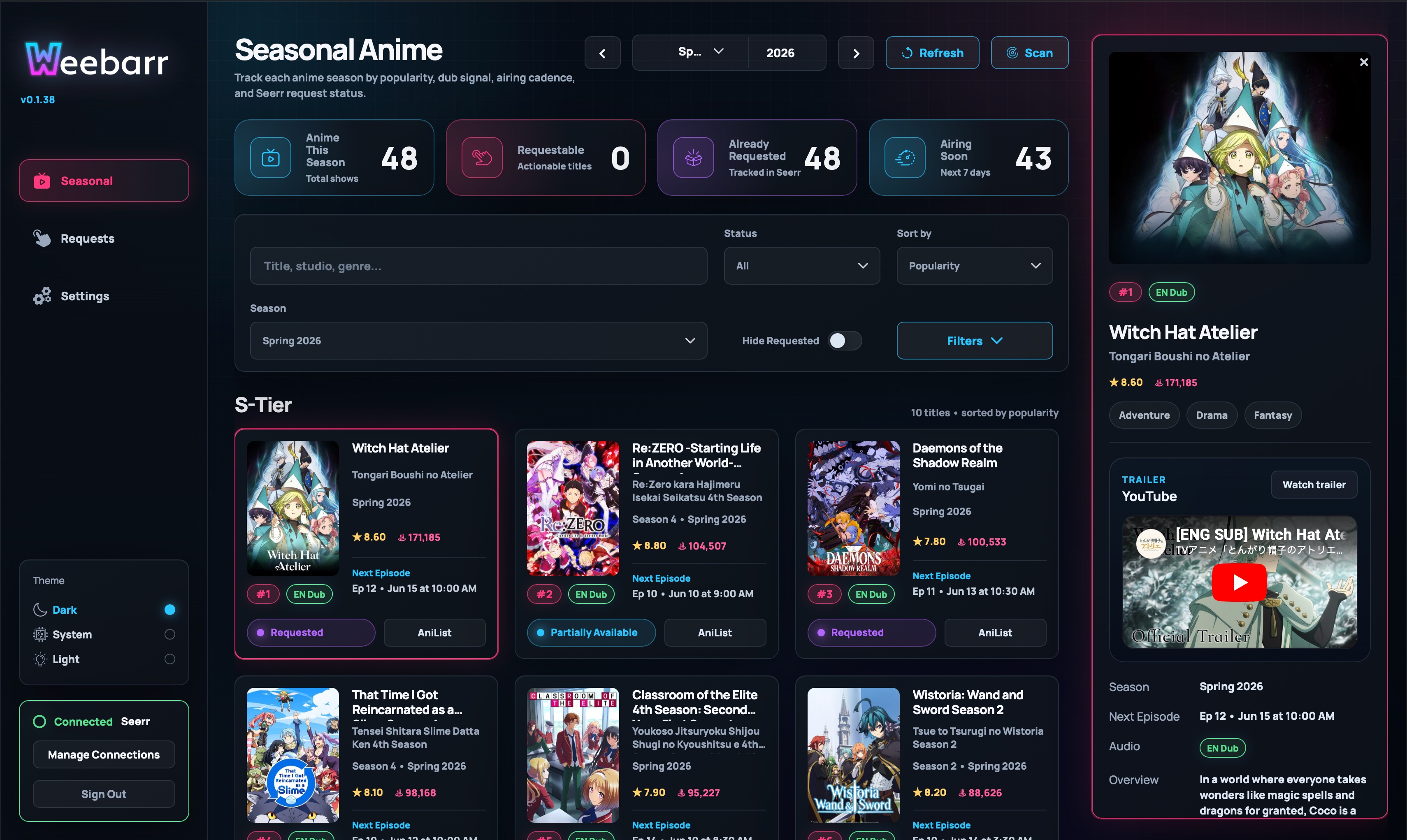
You can use it to:
- choose a season and year
- refresh seasonal data
- run an automation scan manually
- search for a title
- filter by status
- sort the list
- see how many titles are requestable, tracked, requested, or airing soon
Seasonal Buckets
Weebarr groups anime into simple quality buckets:
S-TierCanonBingeableFiller
These are meant to make the seasonal list easier to scan. You can treat them as “watch first,” “probably worth it,” “fine for later,” and “low priority.”
Automation can also use these buckets, so be careful before enabling auto-requesting for a bucket you do not actually want.
Anime Cards
Each anime appears as a card.
Depending on the available data, a card may show:
- poster art
- title
- alternate title
- season label
- AniList score
- AniList popularity
- AniList total episode count
- next episode timing
- audio badge, such as
EN DuborEN Sub - availability state
- request button
- AniList link
The card is meant to answer the quick question: “What is this, and do I need to do anything with it?”
Expanded Details
Selecting a card opens more information.
On desktop, this appears in a side panel. On mobile, the card expands in place.
The detail view can include:
- larger poster or banner art
- title and subtitle
- rank and audio badges
- score, popularity, and total episode count
- genres
- trailer
- summary
- next airing information
- start date
- backend match details
- availability status
- cast and expandable per-character voice actor information from AniList
Use this view when you are deciding whether a show is worth requesting.
Requests Page
The Requests page shows requests made through Weebarr.
It is not a full copy of your Seerr request history or your Sonarr library history. If something was requested outside Weebarr, it may not appear here.
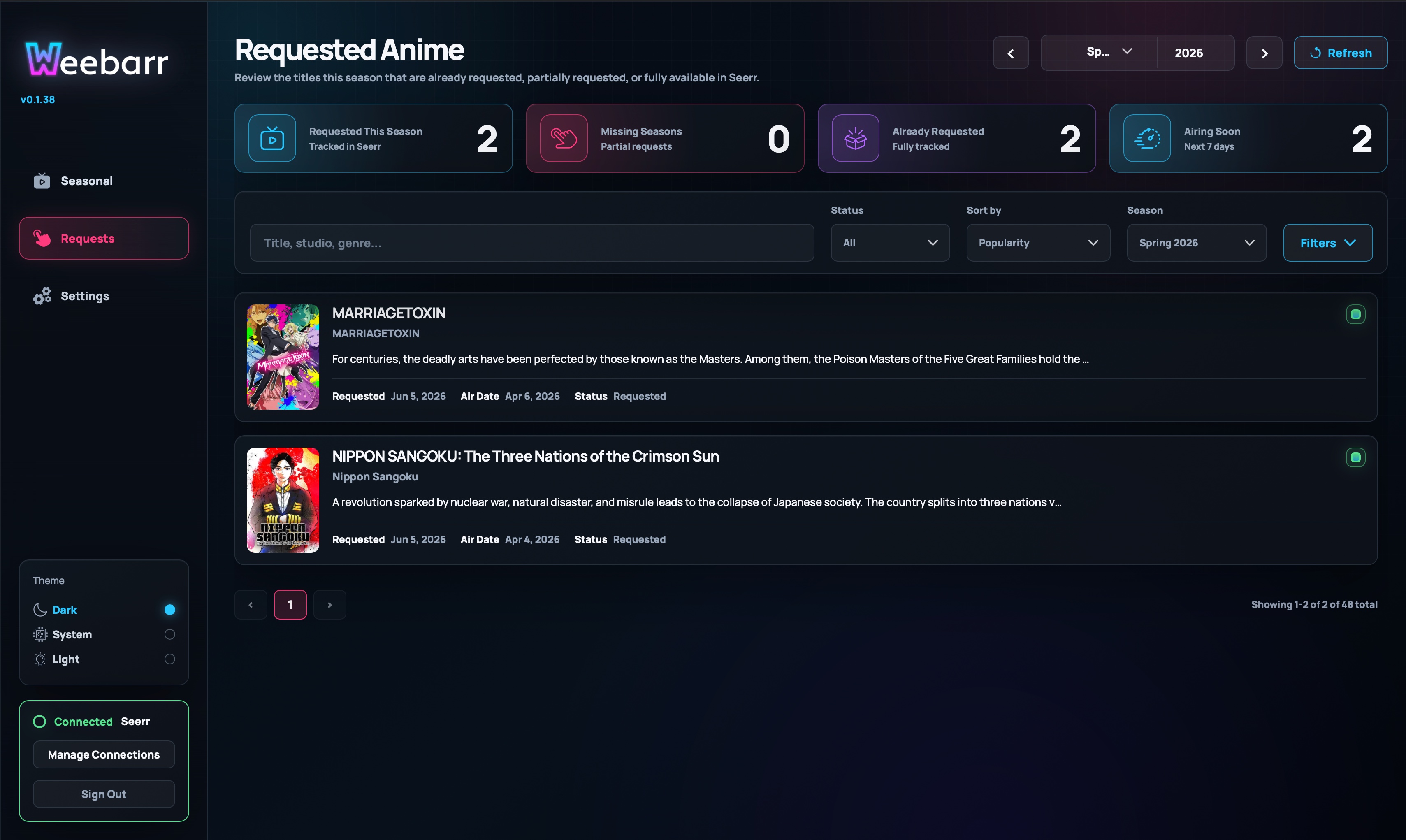
Each row can show:
- poster
- title
- short description
- request date
- air date
- current Weebarr or backend status
Use this page to answer: “What did I request from Weebarr?”
Availability States
Weebarr uses availability states to explain what it found in the active request backend.
Seerr States
Available- The required season or seasons appear to be available in Seerr.
Partially Available- Seerr knows about the show, and at least some required season coverage exists.
Requested- A request exists, but Weebarr does not see enough availability yet to call it partially or fully available.
Missing- Weebarr does not see a usable request or tracked entry for the title yet.
Season Missing- Strict Monitoring is enabled, and Weebarr sees that a later season is not explicitly covered.
No Seerr match- Weebarr could not confidently match the anime to a TV entry in Seerr or TMDb.
Sonarr Direct States
Available- Sonarr coverage is complete enough for the target season or seasons.
Partially Available- Some target coverage exists, but not enough to call the title fully available.
In Library- The show is already tracked in Sonarr, but the target coverage still is not sufficiently available.
Missing- The title is not in Sonarr yet and can be added.
No Sonarr match- Sonarr lookup did not produce a confident usable candidate.
Audio Badges
Weebarr tries to show whether a title has English dub information.
Possible badges include:
EN DubEN Sub
This is best-effort. Weebarr uses AniList information and cached MAL/Jikan voice actor data when available.
If Weebarr cannot find English voice actor data, it falls back to EN Sub.
Do not treat the badge as a perfect streaming availability guarantee. Treat it as a helpful hint.
Requesting Anime
Weebarr can now request anime in two different ways:
Seerr- keeps the current one-click request flow
- uses your Seerr anime/default settings unless you override them in Weebarr
Sonarr Direct- opens a request modal instead of sending immediately
- can expose season selection, monitor mode, search-on-add, and season-folder controls
- uses the saved Sonarr defaults from setup or Settings
Automation
Automation can request seasonal titles for you.
You choose which buckets are allowed, then Weebarr scans on the cadence you save.
Automation only requests titles that are requestable in the active backend.
Typical Seerr-requestable states:
MissingSeason Missing
Typical Sonarr Direct requestable states:
MissingIn LibraryPartially Available
Automation skips titles that are already:
RequestedPartially AvailableAvailable
That skip behavior is intentional. It helps avoid duplicate requests and noisy re-processing.
You can run automation manually from the Seasonal page or let it run on the saved schedule.
Themes
Weebarr includes built-in themes:
Neon LightsMonochromeColor Picker
It can also import community themes, but only as validated theme token packs.
Theme imports are not raw CSS or JavaScript. That keeps themes safer and easier to maintain.
Mobile and PWA
Weebarr is responsive on phones and tablets.
On the mobile Seasonal page, the large centered Weebarr logo and version appear first. The hamburger button opens a full-screen navigation drawer with the main sections, theme controls, connection status, and sign-out action. Once you scroll past the logo, the smaller top-bar mark appears so navigation still feels anchored without taking over the page.
On mobile Settings, the desktop tab row becomes a single section dropdown. Pick a section such as Authentication, API, or Connections, and Weebarr shows that panel using the full screen width.
Supported browsers can also install Weebarr to the home screen using the included PWA manifest and app icons. It is still a self-hosted web app, so your server or tunnel must remain reachable for live data and requests.
For the exact iOS Safari and Android browser steps, see Install as an App.
Login and Access
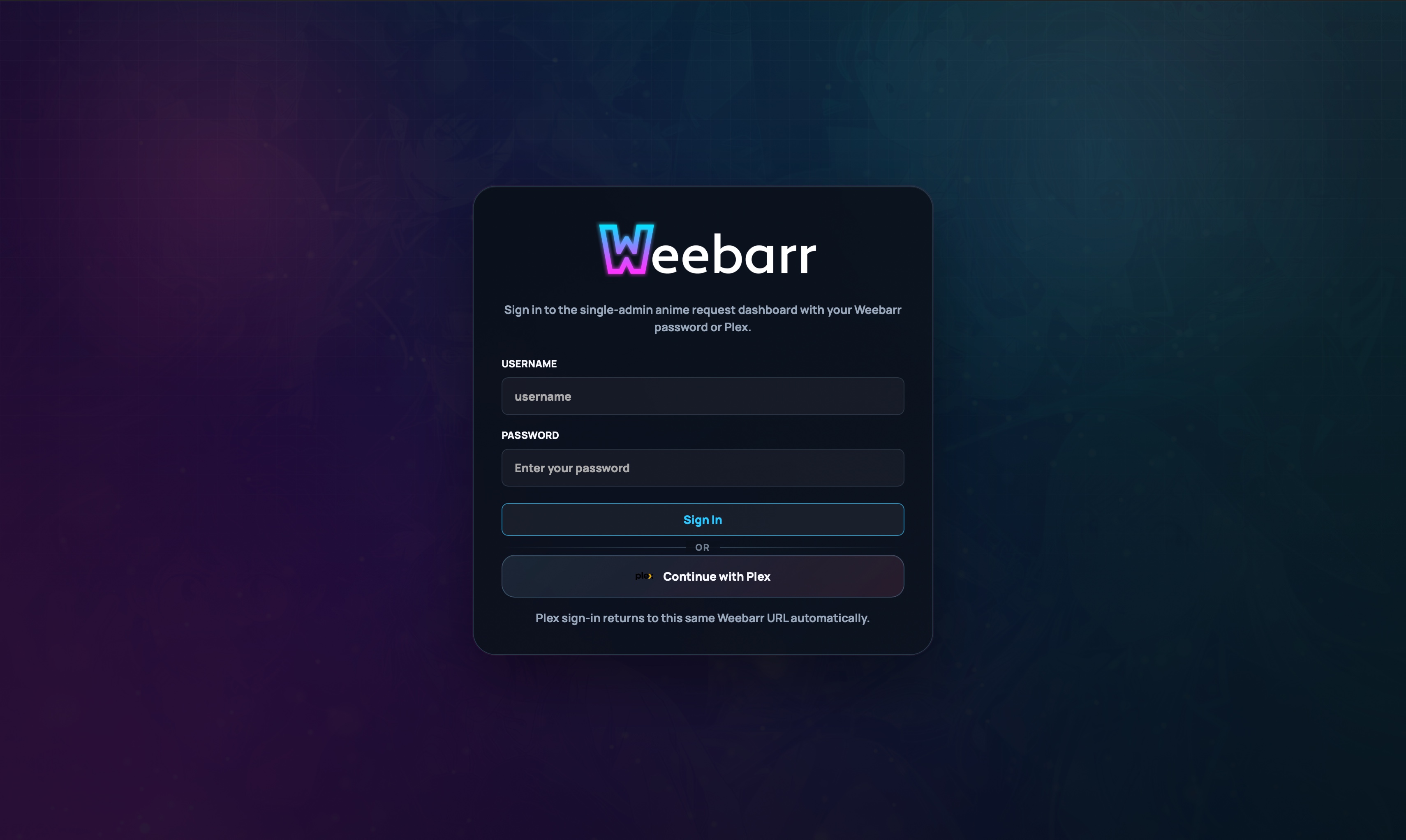
Weebarr is designed as a single-admin app.
You can use:
- local username and password
- Plex login
- both local and Plex login
If both are enabled, either login method can be used.
Security Basics
Weebarr includes several guardrails:
- first-run setup protection
- public URL pinning for Plex callback behavior
- signed sessions
- optional automation API key
- limited API key permissions
- rate limiting around setup, login, and Plex auth starts
Even with those protections, you should still put Weebarr behind HTTPS if exposing it outside your home network.